
Last Updated on April 21, 2026
AI Transparency VerifiedIs Kling AI the best AI video generator for realistic motion and characters?
For a long time, the AI video landscape was fragmented. If you wanted a cinematic clip, you had to generate an image in Midjourney, animate it in Runway, and then drag it into Premiere Pro to add sound effects manually. Furthermore, it was a costly, disjointed workflow that scared off many beginners.
As a result, Kling AI is trying to fix that.
So, with its latest updates—including the O1 Model and Native Audio—it has evolved from a simple video maker into a more self-contained AI video creation platform. Therefore, unlike most competitors, Kling AI brings video, image, sound, avatars, and character consistency together under one interface. The buzz in the AI community is real, but with competitors like Luma Dream Machine and Runway Gen-3 launching updates every week, it is hard to know which tool is actually worth your money.
Furthermore, we have analyzed the documentation, studied user reviews, and broken down the feature list so you do not have to.
So, in this deep-dive review, we will cover:
- 5 Great Reasons why Kling AI is worth trying today.
- Step-by-Step Tutorial: How to generate your first video (based on expert workflows).
- The Showdown: Kling AI vs. Luma vs. Runway.
- The Pricing Trap: What you need to know about credit expiry.
Let us dive in.
5 Great Reasons to Try Kling AI Today
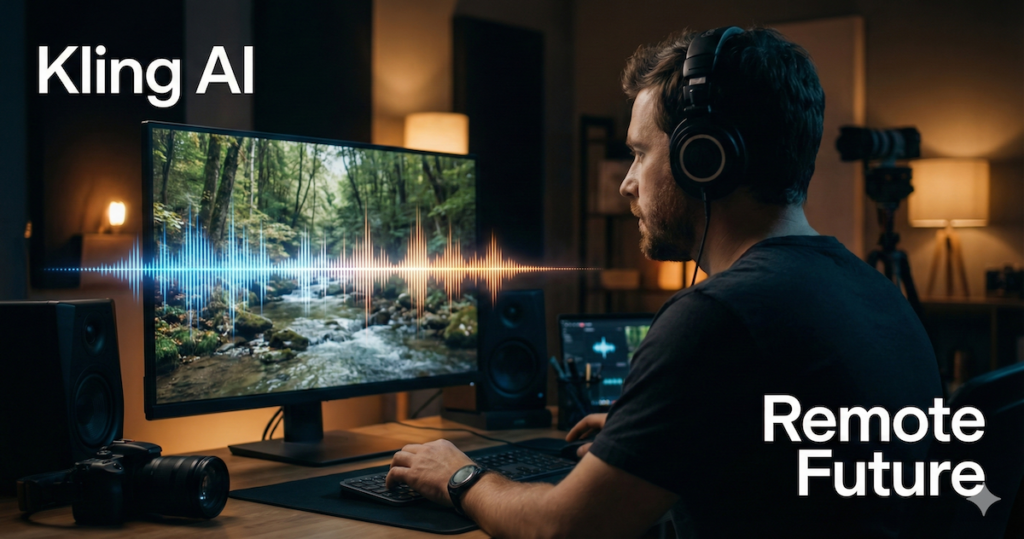
1. Kling AI Native Audio Brings Videos to Life
The biggest immersion breaker in AI video has always been the silence. A crashing wave, a busy street scene, or a speaking character feels “dead” without noise. Previously, creators had to find stock audio and sync it manually—a tedious process.
Kling AI changed this with Native Audio.
This feature generates sound at the same time as the video. If you prompt for a “roaring fireplace,” the AI automatically generates the crackling sounds to match the flames. If you prompt for a car driving by, you often get basic spatial effects, such as changes in volume as objects move.
Why this matters: It is a massive time-saver for social media creators. While it likely will not replace a professional sound designer for a Netflix movie, it appears more than good enough for TikTok or Instagram Reels.
2. The “O1” Model is a Giant Leap in Realism
If you have used older AI tools, you know the “morphing” problem. A car turns into a boat, or a hand suddenly grows six fingers. It ruins the shot immediately.
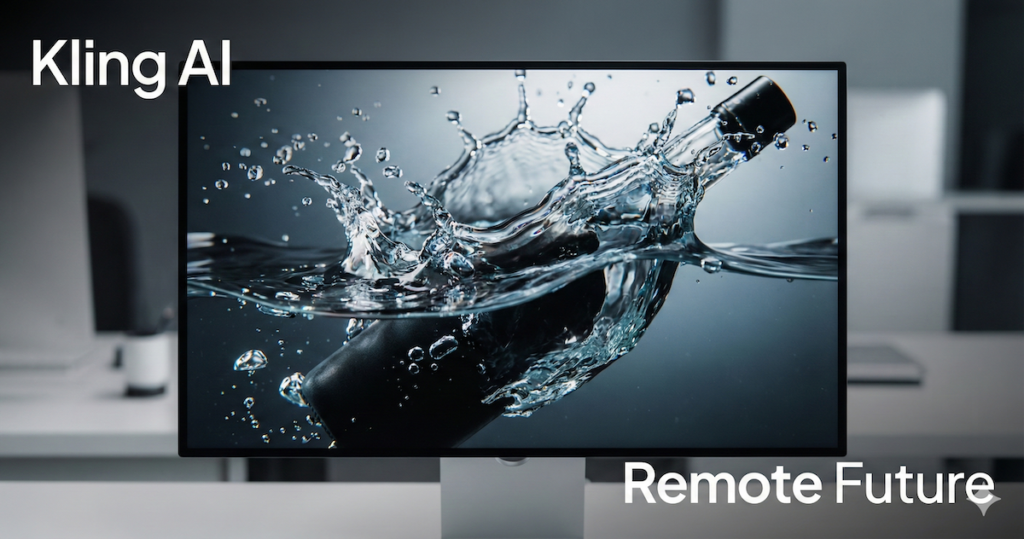
Kling AI has introduced the O1 Model, their flagship “reasoning” engine. Unlike standard models that just guess what the next frame should look like, O1 is designed to understand the physics of the real world. While it still makes mistakes, it fails less often than earlier Kling models.
Side-by-side comparisons show it handling complex fluids—like coffee pouring, rain falling, or smoke billowing—with much higher accuracy than many competitors. It also supports 1080p quality by default, making the output crisp enough for professional presentations.
3. You Can Finally Keep Characters Consistent
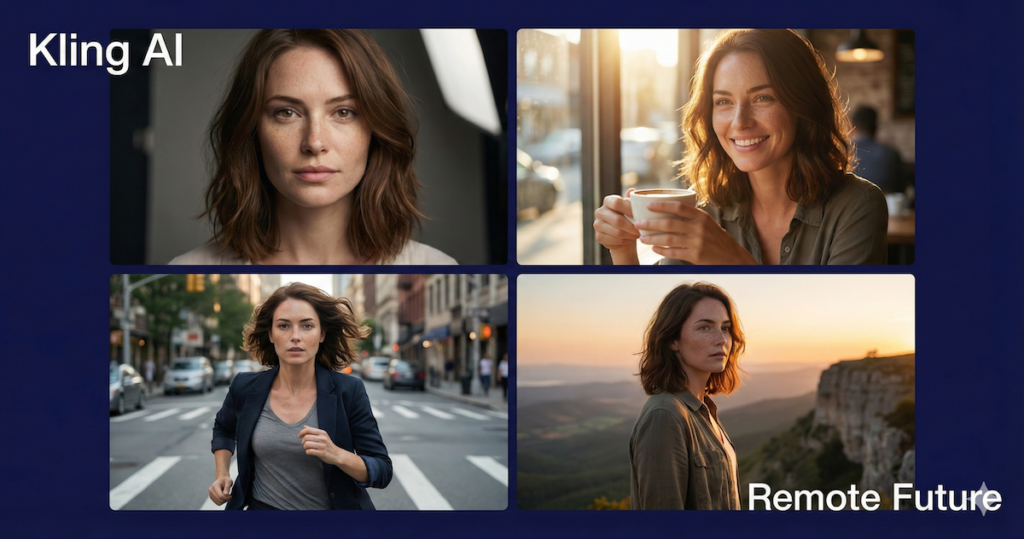
For storytellers, the “random face” issue is a nightmare. You generate a character in Scene 1, but by Scene 2, they look like a completely different person.
Kling AI offers a specific tool called Kling Lab (Custom Models).
This allows you to train the AI on a specific face or character concept. This feature aims to let you create a short film where your main actor looks the same in a close-up, a wide shot, and an action scene. This relative improvement in consistency is one of Kling AI’s biggest advantages over its competitors right now. However, results still depend heavily on prompt quality, lighting consistency, and the quality of the reference images used.
4. Professional Control (No Experience Needed)
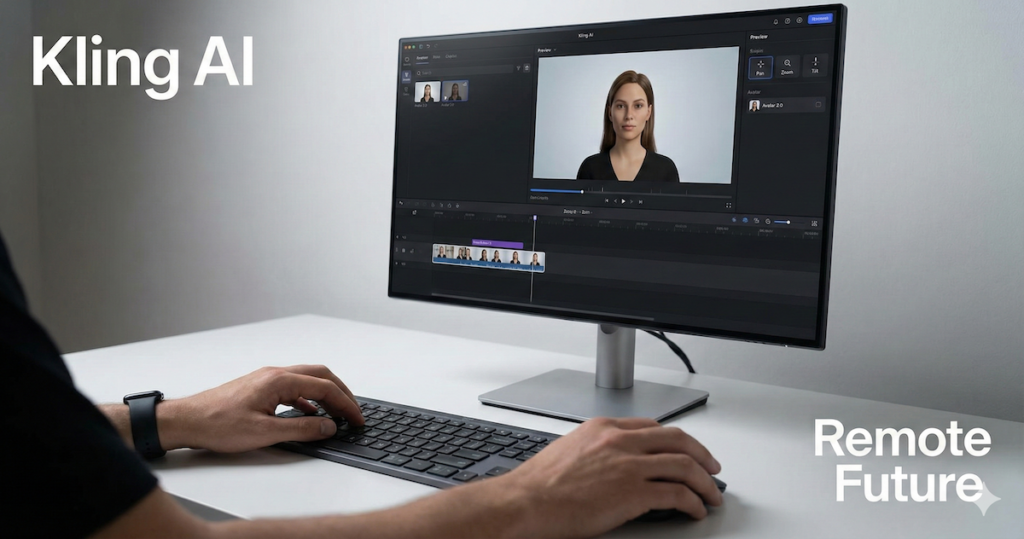
Most beginners feel intimidated by “camera movements” in prompts. Kling AI simplifies this with an intuitive interface that feels like a simple video game.
Instead of typing complex instructions like “camera tracks forward at 50 speed,” you get simple buttons for:
- Horizontal Pan: Move the camera left or right.
- Zoom: Create dramatic close-ups or establishing reveals.
- Tilt & Roll: Add artistic angles to your shots.
They also offer Avatar 2.0, a tool for creating “talking head” videos. If you need a spokesperson for your business but hate being on camera, this tool can lip-sync your script to an AI avatar.
If you want a more fully featured avatar video platform, our HeyGen AI Review covers a tool that goes significantly further with unlimited video generation, voice cloning, and a built-in AI Video Agent.
5. The Generous “Free” Tier (With a Catch)
Let us be honest: nobody wants to pay for a tool they have not figured out yet.
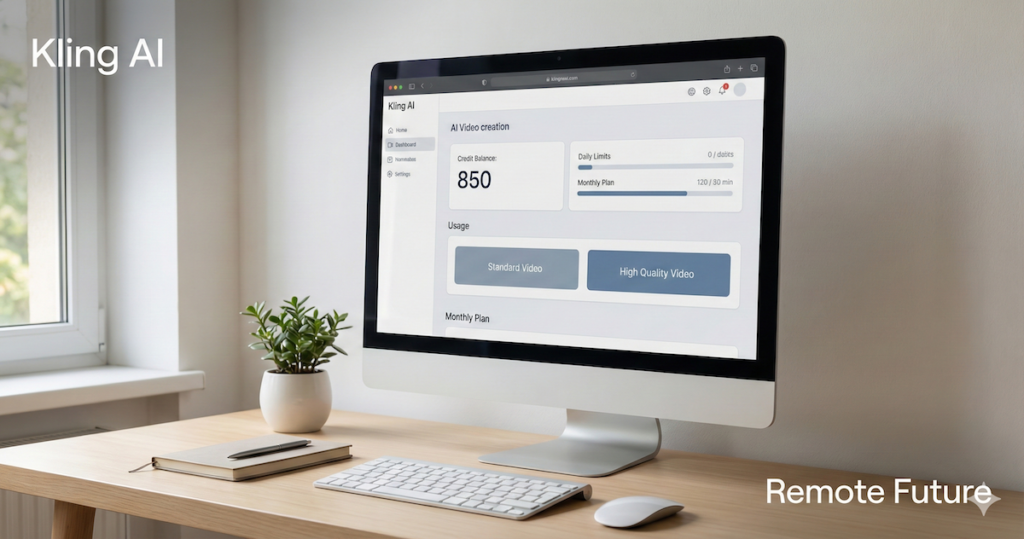
Unlike Runway, which effectively locks you out after a few seconds of video, Kling AI is known for its generous free access. At the time of writing, users commonly report receiving ~60–70 free credits daily. Furthermore, this may change at any time.
- Standard Video: ~20 credits.
- High-Quality Video: ~35+ credits.
This means users can generate about 3 standard videos every single day without spending a dime. It is the perfect, risk-free way to learn the ropes.
Tutorial: How to Use Kling AI (Without Wasting Credits)
If you are new to AI video, the interface can look overwhelming. Here is the recommended workflow used by power users to get the best results without burning through credits.
Step 1: Sign Up & Claim Daily Credits
Go to the Kling AI website and sign in. It is recommended to do this daily, even if you do not plan to generate a video. The free credits are “use it or lose it” (they expire daily), so you want to take advantage of them immediately.
Step 2: Choose Your Mode
You will see two main tabs: Text-to-Video and Image-to-Video.
- Beginner Tip: Start with Image-to-Video. It is generally easier to control the look of your video if you upload a reference image (from Midjourney or Flux) first. If you start with just text, the AI has to guess the art style, which often leads to unpredictable results.
Step 3: Select the Right Model
This is where most people lose money. You will see a dropdown for models:
- Model 1.0 / Standard: fast and cheap (20 credits). Use this for testing prompts.
- Model 1.5 / 1.6 Professional: Better quality (35+ credits).
- Model O1: The “King Mode” (Very expensive).
Warning: Experts advise against using the O1 model until you have tested your prompt on the cheap model first. The O1 model is incredible, but it consumes credits quickly.
Step 4: Craft Your Prompt
Use this simple formula for the best results:
[Subject] + [Action] + [Environment] + [Camera Movement] + [Lighting/Style]
Example: “A cyberpunk samurai [Subject] drawing a katana slowly [Action] in a neon-lit rainy alley [Environment]. Camera slowly zooms in on the eyes [Camera]. Cinematic lighting, 8k resolution, photorealistic [Style].”
Step 5: Adjust Settings
- Duration: Stick to 5 seconds for your first try. 10-second videos cost significantly more and are more likely to have glitches.
- Creativity Relevance: Set this to 0.5. If you go too high, the video might look distorted. If you go too low, it won’t move much.
Step 6: Generate & Extend
Hit “Generate.” Once you have a 5-second clip you love, then use the “Extend Video” feature to add another 5 seconds. This is often safer than trying to generate 10 seconds all at once.
The Showdown: Kling AI vs. Luma vs. Runway
Which tool should you actually subscribe to? Here is the breakdown based on current feature sets and community comparisons.
| Feature | Kling AI | Runway Gen-3 | Luma Dream Machine |
| Best For… | Realistic Motion & People | Abstract & VFX | Speed & Memes |
| Physics Quality | ⭐⭐⭐⭐⭐ (O1 Model is king) | ⭐⭐⭐⭐ (Very good) | ⭐⭐⭐ (Good, but floats) |
| Character Consistency | High (Custom Models) | Medium | Low |
| Generation Speed | Slow (5–20 mins (can be longer during peak usage) | Medium | Fast (1–2 mins) |
| Control | Camera Buttons + Text | Motion Brush (Best control) | Simple Text |
| Audio | Native Audio (Syncs well, ambient only, no dialogue control) | No Native Audio (Silent) | No Native Audio |
| Price | Free Daily Credits | Paid Only (Mostly) | Limited Free Monthly |
| Red Flag | Credit Expiry Policy | Strict Throttling on Unlimited | Lower Resolution |
The Consensus. Choose:
- Kling AI if: You are a filmmaker who needs characters to look consistent, or if you need synchronized audio without editing.
- Runway if: You are a professional editor who needs “Motion Brush” to tell the AI exactly which pixels to move (e.g., “Make the water move, but keep the mountains still”).
- Luma if: You want to make a quick, funny video for Twitter and do not care about “cinematic” perfection.
Interestingly, Kling’s technology is already being used inside AI ad creation tools like Tagshop AI. If you’re curious how that works in practice, check out our Creatify vs Tagshop AI comparison to see how Tagshop uses Kling 3.0 to produce cinematic 4K video ads.
Kling v2.6 is also the engine behind StoryShort AI’s Motion Control feature. If you want to see how it fits into a broader faceless video workflow, our StoryShort AI review covers exactly how the tool uses it alongside UGC ads and long-form video generation.”
Kling AI Pricing Analysis: Is It Worth The Money?
This is the most controversial part of the tool. Based on the latest pricing updates (January 2026), here is the math you need to know.
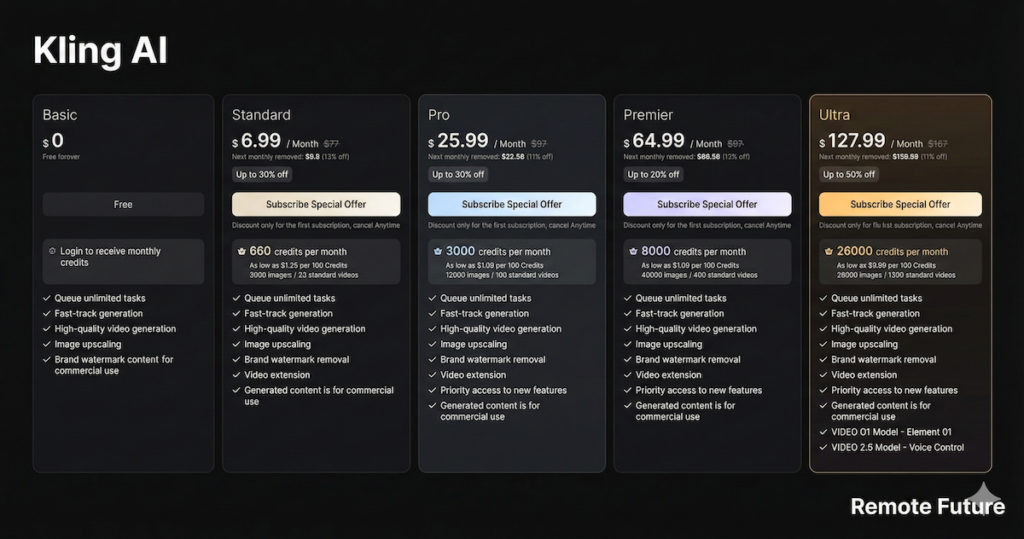
The Plans
- Basic (Free): $0. Includes daily login credits. Not for commercial use.
- Standard: ~$6.99/mo (Promo). Includes 660 credits/mo.
- Pro: ~$25.99/mo (Promo). Includes 3,000 credits/mo.
- Premier: ~$64.99/mo. Includes 8,000 credits/mo.
- Ultra: ~$127.99/month. Includes 26,000 credits per month, priority access to new features, and is designed for high-volume studios and agencies.
The “Credit Math” (Important!)
According to the latest documentation, generating videos costs more than it used to:
- 1 Standard Video (5s): Costs 20 Credits.
- 1 Image Generation: Costs 0.2 Credits.
- The “O1” Bonus: All paid plans currently include 3 free daily uses of the O1 model (Element AI Multi-Shot), as shown on the official pricing page. This is a massive perk worth utilizing.
The “Credit Expiry” Trap
If you look at Trustpilot or Reddit, the #1 complaint about Kling AI is Credit Expiry.
- The Issue: If you buy a monthly subscription, those credits often do not roll over to the next month. If you do not use them, they vanish.
- The Risk: Even worse, some users report that the system uses your purchased (permanent) credits before your monthly (expiring) credits.
Expert Advice: The Standard Plan ($6.99) appears to be the best entry point. It gives you commercial rights and roughly 33 videos per month, plus the daily free O1 uses. It is wise to avoid upgrading to the expensive tiers unless you are running a production studio.
Kling AI Pros & Cons: The Summary
The Good
- Top-Tier Realism: The O1 model is widely regarded as the best for physics and fluids.
- Commercial Rights: Available on all paid plans starting at just ~$7/mo.
- Generous Free Tier: Daily credits allow you to learn the tool without paying.
- Custom Models: The ability to train the AI on a face makes storytelling possible.
The Bad
- Customer Support: Users frequently report slow response times.
- The “99% Stuck” Bug: A common reported glitch where generation hangs at 99%.
- Price Increases: Standard video generation now costs ~20 credits, which is higher than previous versions.
Frequently Asked Questions About Kling AI
1. Is Kling AI actually free to use?
Yes — with limits. Kling AI offers a free tier, and many users report receiving around ~60–70 free credits per day when they log in (this can change at any time). These daily credits are typically use-it-or-lose-it and expire after a short period. Videos generated on the free tier may also include a watermark.
2. Can I use Kling AI videos for commercial work (YouTube or client projects)?
Usually no on the free tier. Commercial usage and watermark removal are generally tied to paid plans (commonly starting with the Standard plan).
Because terms can change, it is best to check the current usage rights inside your Kling AI account before using any output commercially.
3. Why do my Kling AI credits disappear?
This is one of the most common points of confusion for new users.
- Free / daily credits: Often expire on a daily cycle (“use it or lose it”).
- Subscription credits: May expire at the end of the billing period and do not always roll over to the next month, depending on the plan and current policy.
Pro tip: Always review the credit and rollover terms shown in your account dashboard, as Kling’s policies can change.
4. How does Kling AI compare to Runway Gen-3 or Luma Dream Machine?
As a general rule of thumb:
- Kling AI often stands out for photorealism and human movement, especially when using its higher-end models.
- Runway Gen-3 offers more advanced creative controls, such as motion brush tools, which can be useful for abstract or stylized effects.
- Luma Dream Machine is typically faster and works well for quick experiments or social media clips.
If realistic human characters matter most, Kling AI is often a good place to start.
5. How long can Kling AI videos be?
You can usually generate videos starting at around 5 seconds, then use the Extend feature to make them longer.
A recommended workflow is to generate short clips first, confirm the quality, and only then extend them — this helps avoid wasting credits.
6. What is the “O1 Model” everyone talks about?
The O1 model is Kling AI’s most advanced option and is designed for higher realism, particularly for motion, lighting, and physical details. It generally produces better results than standard models but uses significantly more credits, so it is best tested only after refining your prompt on cheaper models.
Final Verdict
Kling AI is currently the most exciting, yet frustrating, tool in the AI video space.
Technologically, it is a marvel. The O1 model and Native Audio features put it slightly ahead of Runway and Luma for pure cinematic realism. If your goal is to make a short film with consistent characters and sound, Kling AI seems to be the best option today.
However, the business practices—specifically regarding credit expiration and support—are a common point of frustration for the community.
Recommendation: Do not reach for your credit card yet. Start by signing up for the Basic (Free) account. Log in daily to claim your credits. Build up a library of test clips. So, if you need commercial rights, the Standard Plan ($6.99) is a safe, low-cost investment.
Ready to start creating?
Work Smarter. Live Better.
Affiliate Disclosure: This article contains affiliate links. So, if you purchase through my link, I may earn a small commission at no extra cost to you.
You Might Also Like These AI Tools:
Predis.ai Review: The Smart Social Media Assistant
Makereels AI Review 2025: The Ultimate Guide to Viral Reels
Ibra A. is the founder of Remote Future, a site covering AI tools, remote work, and online business strategies. He holds a Facebook Social Media Marketing certificate from Coursera and actively tests AI tools to support independent creators and small business owners. His focus is practical, no-hype guidance for people building lean online businesses.
Our content is created using AI tools to support efficient research and writing, with human direction, verification, and editorial review by Ibra A.
AI-assisted content with human editorial oversight.
See our AI editorial policy
Content on Remote Future is created using AI tools to support efficient research and writing for remote workers and creators, followed by human edits for clarity and accuracy.
Read our AI Editorial Policy.