
Last Updated on August 23, 2026
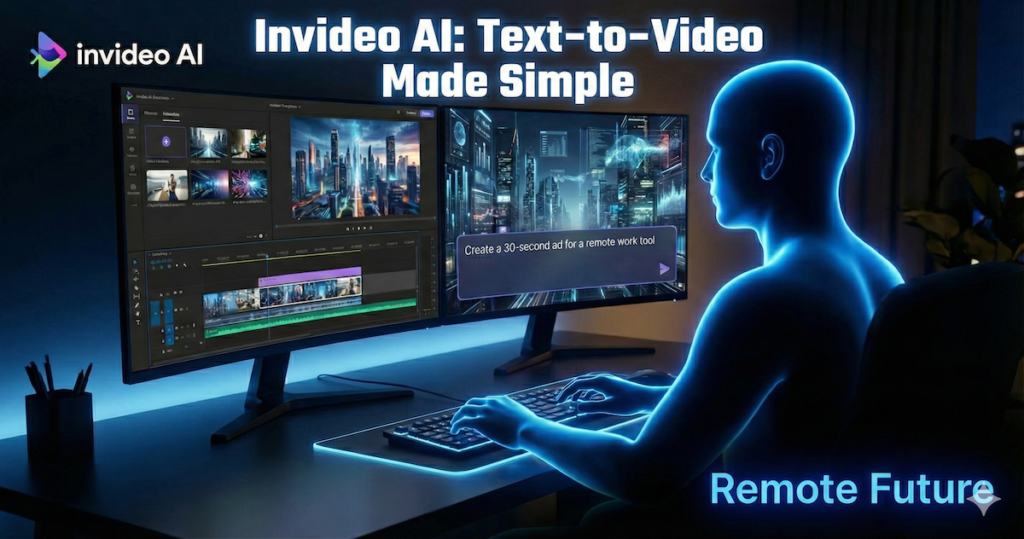
AI Transparency VerifiedHave you ever had a brilliant idea for a video but felt completely stuck because you did not know how to edit? You are not alone. We have all been there. Indeed, staring at a blank timeline, overwhelmed by complex software, and wishing we could just tell the computer what to do. So, without further a due, introducing Invideo AI.
Well, imagine having a video editor friend who works 24/7, never complains, and understands plain English. As a matter of fact, this is exactly what Invideo AI promises to be. It is designed to turn your simple text prompts into publish-ready videos, complete with stock footage, voiceovers, and subtitles.
Furthermore, in this guide, we are going to dive deep into Invideo AI. I have not tested this tool personally. Nevertheless, I have done extensive research, analyzed user feedback, and combed through their latest feature updates (including the buzz around their new AI models) to give you the most comprehensive, honest breakdown possible.
Whether you are a marketer, a teacher, or just someone with a story to tell, this post will help you decide if Invideo AI is the right creative partner for you. So, let us explore how this tool might just change the way you create content forever.
What Is Invideo AI?
Initially, at its core, Invideo AI is a specialized “text-to-video” platform. Unlike traditional video editors where you drag and drop clips manually, this tool works backwards from your idea. You provide a topic, a script, or even just a rough concept, and, as a result, its artificial intelligence engine constructs a video for you.
Moreover, think of it as a creative director. It selects relevant stock media from massive libraries (like Storyblocks and Shutterstock), generates a natural-sounding voiceover, adds background music, and synchronizes everything with subtitles.
However, it is not just a random generator. What sets Invideo AI apart is its focus on workflow. In fact, it does not just give you a video file and say “good luck.” It provides a collaborative environment where you can refine the result using simple text commands. So, if you do not like a specific clip, you simply type, “Replace the cat with a dog,” and the AI executes the change.
The “No-Edit” Philosophy
The primary goal here is speed. For business owners and content creators, time is often more valuable than pixel-perfect precision. Invideo AI aims to remove the “technical barrier” of video production. So, you do not need to know about keyframes, color grading, or audio mixing. You just need to know what message you want to convey.
Invideo AI Key Features That Matter
To begin with, let us break down the specific tools that make this platform tick. We are not just listing specs; we are looking at how these features actually help you get work done.
1. The Magic Box (Prompt-to-Video)
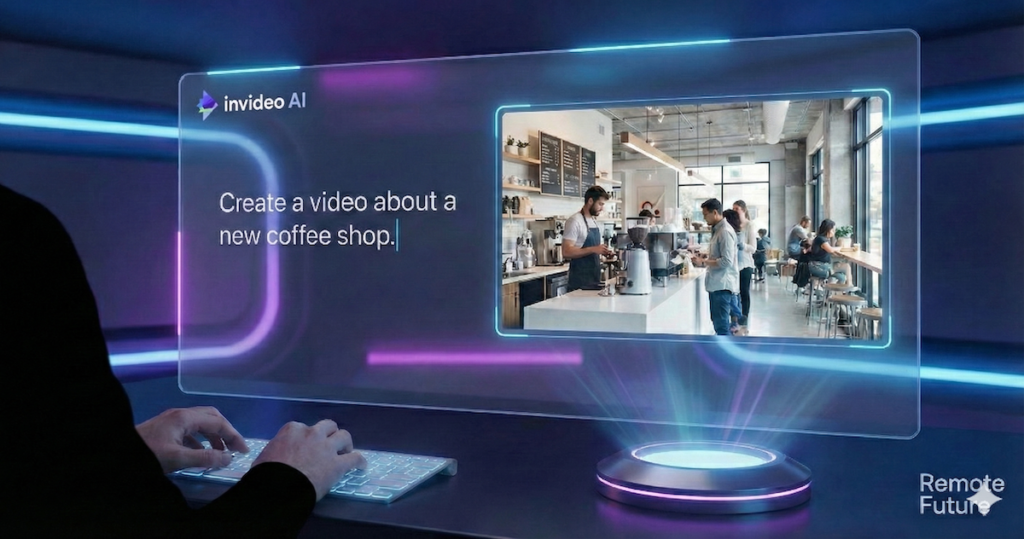
This is the heart of the platform. When you log in, you are greeted by a simple text box. Here, you describe your video. You can be as vague or specific as you like.
- Example: “Create a 30-second promo for a new coffee shop in Brooklyn. Use an energetic tone, upbeat jazz music, and target young professionals.”
- The Result: The AI analyzes this prompt to understand the sentiment, pacing, and visual needs. It then generates a script, finds matching visuals, and puts it all together.
2. “Edit Like You Think”
Most AI tools struggle when you want to make changes. You usually have to re-generate the whole thing and hope for the best. Invideo AI solves this with its command-based editing.
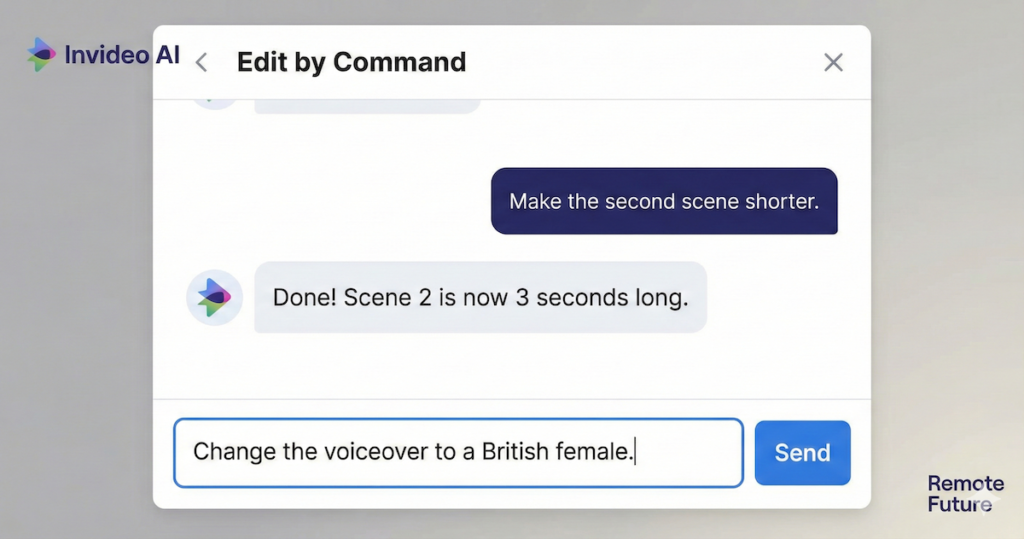
- How it works: After the video is generated, you get a chat box similar to ChatGPT.
- Commands you can give:
- “Change the voiceover to a British female.”
- “Make the second scene shorter.”
- “Delete the scene about pricing.”
- “Add a call to action at the end for my website.”
This conversational editing style is a game-changer for beginners because it uses natural language rather than technical buttons.
3. Massive Media Library
A video is only as good as its visuals. As a matter of fact, Invideo integrates with premium stock libraries, giving you access to millions of royalty-free images and video clips.
- Why this matters: Sourcing stock footage manually is expensive and time-consuming. Having it built-in means you do not have to leave the tab to find that perfect shot of a “person typing on a laptop” or “sunset over a city.”
4. Human-Quality AI Voiceovers
In addition, bad audio ruins good video. Invideo AI offers a wide range of AI voices that sound surprisingly human. They have pauses, intonation, and varying accents.
- Variety: You can choose from different accents (American, British, Australian, etc.) and tones (Excited, Professional, Soothing).
- Voice Cloning: For those who want to build a personal brand, there is a feature to clone your own voice. So, this allows you to narrate videos without actually recording fresh audio for every single project.
5. Multi-Language Support
The world is global, and your content should be too. Therefore, you can prompt the AI to create videos in over 50 languages.
- Use Case: If you have a hit video in English, you can simply ask the AI to “Translate this video into Spanish,” and it will translate the script, generate a Spanish voiceover, and adjust the subtitles.
6. Intelligent Script Generation
As a matter of fact, you do not even need a script to start. If you just have a URL to a blog post or a general topic, Invideo AI will write the script for you. Indeed, it understands structure—hooks, body content, and conclusions—ensuring your video creates a coherent narrative arc.
Invideo AI Deep Dive: The AI Models (Sora 2, Veo 3.1)
One of the most exciting aspects of Invideo AI in late 2025 is its integration with cutting-edge third-party models. They act as an aggregator, giving you access to the best technology without needing separate subscriptions.
Sora 2 Integration
OpenAI’s Sora 2 is famous for creating hyper-realistic video from scratch (not just stock footage). Invideo AI allows you to tap into this power.
- Best for: Cinematic shots that do not exist in stock libraries. Need a video of a “futuristic cyberpunk city with flying cars”? Therefore, Sora 2 can generate that fresh, giving your video a unique look that no one else has.
Google Veo 3.1
This model is another heavyweight in the generative video space.
- Best for: High-fidelity consistency and complex motion. So, if you need a specific character to move naturally through a scene, Veo 3.1 is often the engine of choice.
Why Aggregation Wins
Additionally, by combining these models with standard stock footage, Invideo gives you the best of both worlds. You get the reliability of real-world stock clips for general scenes, and the creative magic of generative AI for specific, hard-to-find visuals.
Who Is Invideo AI For?
To begin with, this tool is not for Hollywood filmmakers. In fact, it is for people who need volume, speed, and effectiveness. Therefore, let us look at specific user types who will benefit the most.
1. Content Marketers & SEOs
- The Pain: You have written a great blog post, but you need a video to increase time-on-page and rank on YouTube.
- The Solution: Paste your blog URL into Invideo AI. It summarizes the post into a 2-minute video. You can embed this video back into your article, instantly boosting your SEO signals.
2. Social Media Managers
- The Pain: You need to post on TikTok, Instagram Reels, and YouTube Shorts every single day.
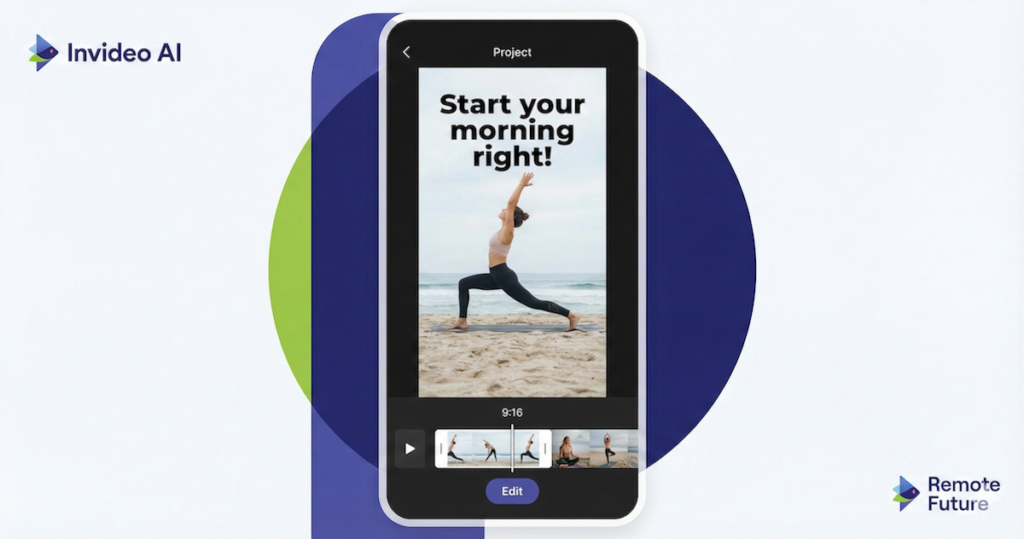
- The Solution: You can take one topic (e.g., “5 Tips for Better Sleep”) and ask Invideo to generate a vertical video. Then, use the “Edit” command to create variations or translate it for different regions. Consequently, it turns a one-hour task into a 5-minute task.
3. Small Business Owners
- The Pain: You need ads for Facebook but cannot afford an agency.
- The Solution: You can create simple promotional videos. “Showcase my plumbing services in Chicago, mention we offer 24/7 emergency repair.” So, the AI builds a professional-looking ad that you can run immediately.
4. Educators and Course Creators
- The Pain: Your students prefer video, but making slide decks is boring.
- The Solution: Input your lesson notes. The AI creates an explainer video with relevant visuals, making complex topics like “Photosynthesis” or “The French Revolution” visually engaging.
Invideo AI Real-World Case Studies (Hypothetical)
To better understand how this tool fits into a daily workflow, let us explore two detailed hypothetical scenarios. These examples are constructed to illustrate how specific features solve common business problems.
Case Study 1: The Local Real Estate Agent
- The Challenge: Sarah runs a boutique real estate agency. She just listed a stunning downtown apartment but has zero video editing skills and a limited marketing budget. She needs a video tour for Instagram Reels by tomorrow.
- The Invideo Solution: Sarah uploads 10 photos she took on her phone to Invideo AI.
- The Prompt: She types, “Create a 60-second vertical video for Instagram. Showcase this luxury apartment in downtown. Mention the high ceilings, modern kitchen, and sunset view. Use a classy, upbeat jazz track and a professional female voiceover. End with ‘Book your viewing today’.”
- The Outcome: In less than 5 minutes, Invideo generates a slick video. It animates her static photos with “pan and zoom” effects to make them dynamic. It adds a sophisticated voiceover describing the features she listed. Sarah notices the AI forgot to mention the balcony, so she types into the edit box: “Add a sentence about the private balcony after the kitchen scene.” The AI instantly updates the script and voiceover. She exports it and posts it that afternoon.
Case Study 2: The Faceless History Channel
- The Challenge: Mark wants to build a YouTube channel about “Unsolved Mysteries” as a side hustle. He does not want to show his face or record his own voice, and he cannot afford to pay a scriptwriter.
- The Invideo Solution: Mark asks Invideo AI to “Create a 5-minute YouTube video about the mystery of the Mary Celeste ship. Use a suspenseful, mysterious tone. Focus on the theories of what happened.”
- The Outcome: The AI scours its database to write a factual script about the Mary Celeste. It selects stock footage of 19th-century ships, stormy oceans, and old maps. It applies a deep, dramatic AI voice. Mark reviews the video and sees a clip of a modern cruise ship that looks out of place. He clicks the specific scene and uses the media swap tool to search for “vintage sailing ship,” replacing the error in seconds. Thus, he now has a piece of content that would have taken days to edit manually.
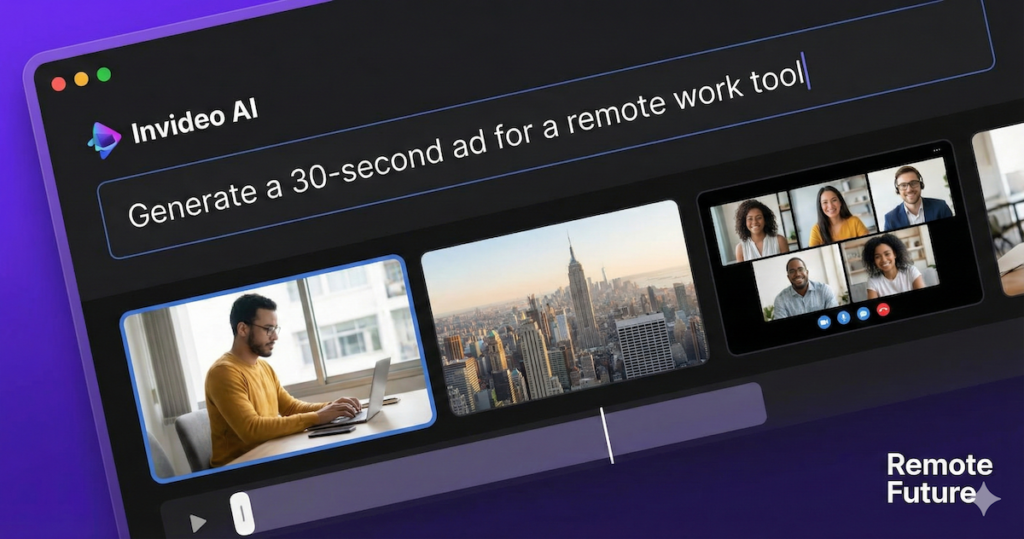
Invideo AI Technical Deep Dive: Inside Editing Interface
It is important to clarify that Invideo AI has a different interface than the classic “Invideo Studio.” If you are used to traditional timelines like Premiere Pro, this will feel different.
The “Script-Based” Timeline
Invideo AI does not use a multi-track timeline with separate layers for audio and video stacked on top of each other. Instead, it uses a linear script editor.
- Visual Layout: On the left, you see your script broken down sentence by sentence. On the right, you see the visual canvas.
- Scene Logic: Each sentence or paragraph of the script acts as a “Scene.” The media attached to that scene is linked directly to the text. Therefore, if you delete the text, the scene disappears.
Media Layering and Swapping
While you do not have complex tracks, you do have granular control over the media within each scene.
- The Media Bin: When you click on a scene, a media bin opens. You can search for stock footage or upload your own.
- Smart Matching: The system suggests keywords based on the script for that specific sentence. If the sentence is “The sun sets over the ocean,” the search bar automatically pre-fills with “sunset ocean.”
Command Box vs. Manual Tweaks
You have two ways to edit:
- The “Magic Box”: As mentioned, you type changes (“Change music to rock”). In fact, this is unique to Invideo AI.
- Manual Edit Mode: You can still manually click a pencil icon to rewrite text, adjust the timing of a specific scene, or crop a video clip. This hybrid approach allows you to use AI for the heavy lifting while retaining manual control for the final polish.
Alternative Workflows: Integrating with Other Tools
Invideo AI is powerful, but it becomes a superpower when combined with other tools in your stack. So, here are two “power user” workflows to get superior results.
1. The ChatGPT + Invideo Workflow
While Invideo creates scripts, dedicated LLMs like ChatGPT often write better, more nuanced narratives.
- Step 1: Go to ChatGPT (or Claude). Ask it to write a highly engaging script for your video. “Write a funny, 300-word script about why cats love boxes. Use short punchy sentences.”
- Step 2: Copy that exact text.
- Step 3: In Invideo AI, use the prompt: “Create a video using this exact script: [Paste Script]. Use a male British voice.”
- Why do this? This gives you total control over the words before the video is even made, often resulting in higher quality content than letting Invideo write the script from scratch.
2. The Canva + Invideo Workflow
Invideo’s stock library is great, but sometimes you need custom branded graphics.
- Step 1: Use Canva to design your specific title cards, infographics, or logo animations. Export them as high-quality images or short video clips (MP4).
- Step 2: Upload these assets into Invideo AI’s upload tab.
- Step 3: During the generation or edit phase, instruct Invideo: “Use my uploaded image ‘Title_Card_1.png’ for the intro scene.”
- Why do this? This prevents your video from looking like a “generic stock video” and injects your unique brand identity directly into the AI-generated flow.
Invideo AI Step-by-Step Guide: Creating Your First Video
However, since I have not used the tool hands-on, I have constructed this walkthrough based on detailed documentation and user tutorials. So, here is the mental model of how a session flows.
Step 1: The Prompt
Log in and locate the main text box. This is where you set the stage.
- Tip: Be descriptive. Instead of “Make a video about dogs,” try “Create a funny 1-minute video about the top 5 easiest dog breeds to train. Target first-time owners. Use a female voiceover and a playful tone.”
Step 2: Audience and Platform Settings
You will often see options to select your target platform (YouTube Shorts, Instagram, LinkedIn) and your audience (General, Professional, Kids). Selecting these helps the AI adjust the pacing and aspect ratio (vertical vs. horizontal) automatically.
Step 3: Generation
Hit “Generate.” The system will process your request. This usually takes a few minutes. During this time, it is writing the script, selecting scenes, and processing the audio.
Step 4: Review and Edit
Once the video loads, watch it through. Spot anything off?
- Visuals: If a clip does not match the script, pause at that timestamp. Type in the edit box: “Replace the current clip with a video of a Golden Retriever.”
- Script: If the AI said something factually incorrect, you can edit the script text directly, and the AI will regenerate the voiceover to match the new text.
Step 5: Export
When you are happy, click export. You can choose your resolution (usually 1080p). If you are on a free plan, remember there will be watermarks. Paid plans allow you to download clean files.
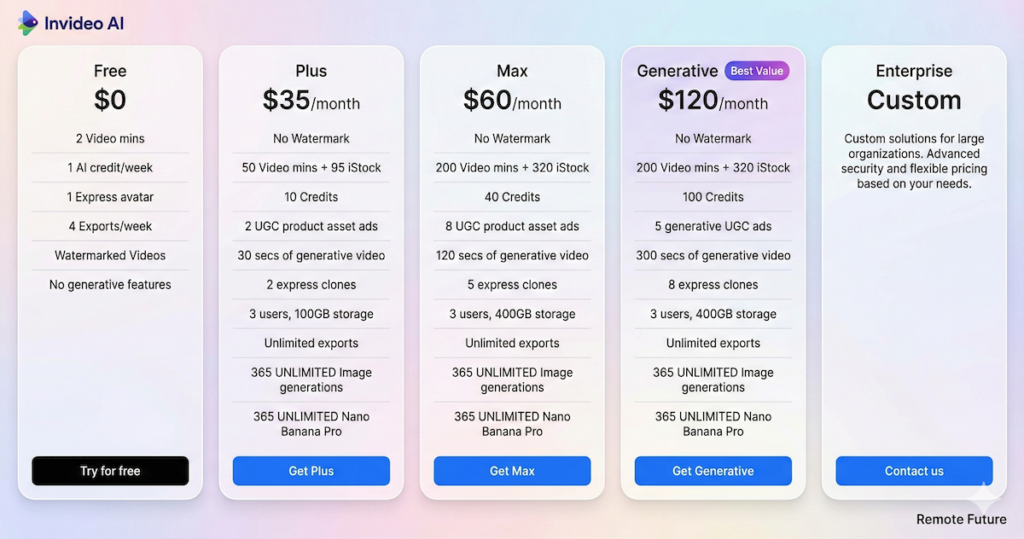
Invideo AI Pricing Analysis: Is It Worth It?
Of course, pricing is often the deal-breaker. Invideo AI operates on a “freemium” model, but the real power is locked behind subscriptions.
Invideo AI – The Free Plan
- Cost: $0/month.
- What you get: You can test the features, generate scripts, and see how the AI works.
- The Catch: You get very limited video generation time (approx. 10 minutes/week), and crucially, watermarks.
- Verdict: Good for testing, useless for professional publishing.
Invideo AI – The Plus Plan
- Cost: $25/month or $336/year
- What you get: No watermarks, more stock media access, and significantly more “AI generation minutes” (usually 50 mins/month).
- Verdict: This is the sweet spot for solo creators and small businesses. 50 minutes of finished video is quite a lot if you are making short social clips.
Invideo AI – The Max Plan
- Cost: $60/month or $600/year
- What you get: Heavy usage. More generation minutes (200+), priority support, and higher limits on stock media storage.
- Verdict: Best for agencies or freelancers managing multiple clients.
Note: Pricing subject to change.Therefore, always check the official site for the latest figures.
Pros and Cons Of Invideo AI
To maintain our “honest expert” perspective, we need to look at the limitations. Obviously, No tool is perfect.
Invideo AI Pros
- Incredible Speed: Going from zero to a finished video in 5 minutes is unmatched.
- Low Learning Curve: If you can send a text message, you can use this software.
- One-Stop-Shop: You do not need a separate subscription for stock footage, music, or a voiceover artist. It is all bundled.
- Edit by Command: This feature alone saves hours of frustration with timelines and cutting tools.
Invideo AI Cons
- Generic Feel: Sometimes, the AI relies too heavily on generic stock footage. Your video might look a bit “corporate” or “cookie-cutter” unless you manually swap in more unique clips.
- AI Hallucinations: The script generator might occasionally invent facts or sound a bit robotic. Thus, You must fact-check the output.
- Credit Limits: The pricing is based on “generation minutes.” So, if you are a perfectionist who wants to regenerate a scene 50 times, you will burn through your credits quickly.
- Control vs. Convenience: You trade granular control for speed. You cannot easily perform complex editing tricks like “masking” or precise color grading that you could do in Adobe Premiere.
Comparison: Invideo AI vs. The Competition
How does it stack up against other big names?
Invideo AI vs. Runway
Runway is a powerhouse for generative video (creating weird, artistic, new visuals). However, Runway is not great at making a full “story” with a script and voiceover. Invideo is a storyteller; Runway is a visual artist. So, Use Invideo for marketing; use Runway for art.
If your focus is purely on high-converting short-form ads, Creatify AI is more specialized and worth comparing.
If you specifically need to create TikTok-style product ads from a Shopify URL, InVideo doesn’t have that dedicated pipeline. Our guide on how to make TikTok AI UGC ads with Creatify AI covers a tool built exactly for that workflow. If you’re also curious about TagShop AI as an alternative for creating AI UGC video ads, our TagShop AI review breaks down exactly how it compares. And if you are ready to get started with Tagshop AI, our step-by-step Tagshop AI tutorial walks you through the full workflow with verified screenshots.
Expert Tips for Better Results Using Invideo AI
Since I want you to succeed, here are some “prompt engineering” strategies to get the most out of Invideo AI.
- Be Specific with Tone: Do not just say “make a video.” Say “Make a sarcastic, fast-paced video.” In fact, the AI picks up on emotional cues.
- Provide the Script: If you can, write the script yourself (or use ChatGPT to write it) and paste it in. The AI is better at matching visuals to text than it is at writing the text itself.
- Iterate in Small Batches: Do not try to generate a 10-minute documentary in one go. Break it down. Generate a 2-minute section, refine it, and then generate the next.
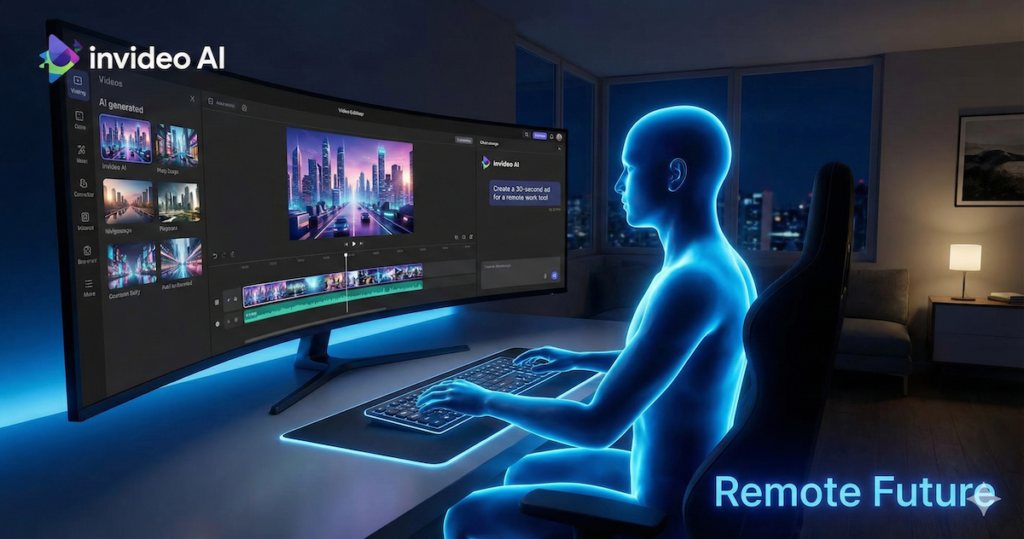
- Upload Your Own Assets: To stop your video looking generic, upload your own logo, photos of your team, or product shots. Ask the AI to “Insert my logo at the beginning” to brand it instantly.
If you also need a faceless video tool that combines long-form video generation with UGC ads and AI influencers in one place, our StoryShort AI review covers a strong alternative worth comparing.
Bonus: 10 Copy-Paste Prompt Templates for Invideo AI
Staring at that blinking cursor can be intimidating. To help you get started immediately, I have put together 10 “Master Prompts” that are optimized to get the best results from Invideo AI.
Simply copy these, fill in the brackets [like this], and hit generate.
1. The “Viral Listicle” (Great for YouTube Shorts/Reels)
Best for: Quick tips, fun facts, and engaging social content.
“Create a 60-second vertical video about [Topic: e.g., 5 Mind-Blowing Space Facts]. Keep the pacing fast and energetic. Use a [Voice Type: e.g., young American male] voiceover that sounds enthusiastic but not shouting. Start with a hook that says ‘[Insert Hook: e.g., You won’t believe number 4]‘. Use dynamic stock footage and upbeat pop music. Add bold subtitles in the center of the screen.”
2. The “Local Business” Promo
Best for: Promoting a service, shop, or sale.
“Make a 30-second promotional video for [Business Name: e.g., Joe’s Pizza] located in [City]. The mood should be [Mood: e.g., warm, family-friendly, appetizing]. Highlight these three features: [Feature 1], [Feature 2], and [Feature 3]. Use acoustic background music. End with a strong Call to Action to visit our website at [Website URL].”
3. The “Blog Post Summarizer”
Best for: Repurposing written content for LinkedIn or Twitter.
“Create a 2-minute landscape video summarizing this article: [Paste Article Text or URL]. The tone should be professional and educational. Break the content down into 3 main takeaways. Use relevant B-roll footage to illustrate the points. Use a calm, professional British female voiceover. Add a clear title card at the start.”
4. The “How-To” Explainer
Best for: Tutorials and educational content.
“Create a step-by-step explainer video on [Topic: e.g., How to change a tire]. The audience is [Audience: e.g., complete beginners]. Use a clear, slow-paced instructional tone. Break it down into [Number] simple steps. Use clean, bright visuals and soft background music that does not overpower the voice.”
5. The “Motivational Quote”
Best for: Instagram Reels and morning motivation.
“Create a 15-second vertical video featuring a quote by [Author Name] that says: ‘[Insert Quote]‘. The visual style should be cinematic and atmospheric, featuring [Visual Theme: e.g., mountains, sunrises, or storms]. Use a deep, dramatic voiceover and an epic orchestral music track building to a crescendo.”
6. The “Real Estate” Walkthrough
Best for: Agents showing off a property.
“Create a luxury real estate video for a property in [Location]. Describe a home with [Feature 1: e.g., 4 bedrooms], [Feature 2: e.g., a pool], and [Feature 3: e.g., a modern kitchen]. The tone should be elegant and sophisticated. Use slow-pan visuals of modern interiors. Background music should be soft jazz or lo-fi beats.”
7. The “Storytime” Video
Best for: Personal branding and engaging history.
“Tell a 3-minute story about [Event/Person: e.g., The invention of the lightbulb]. Use a narrative storytelling style, like a documentary. The voiceover should sound like an old-school narrator. Start with a mystery to hook the viewer. Use a mix of historical photos (black and white) and dramatic stock footage.”
8. The “Product Launch” Teaser
Best for: Building hype before a release.
“Create a high-energy 20-second teaser for a new product called [Product Name]. It helps people [Main Benefit]. Do not reveal the full product yet, just hint at it with close-up shots and fast cuts. Use intense, rhythmic music. End with the text ‘Coming Soon’ and the date [Date].”
9. The “Industry News” Update
Best for: Establishing authority in your niche.
“Act as a news anchor. Create a 1-minute video reporting on the recent news about [News Topic]. Explain why this matters for [Target Audience]. The tone should be urgent but factual. Use a ‘Breaking News’ style intro and lower-third graphics for the text.”
10. The “Travel Guide”
Best for: Travel bloggers and agencies.
“Create a travel guide for [Destination: e.g., Bali, Indonesia]. Highlight the top 3 places to visit: [Place 1], [Place 2], and [Place 3]. The vibe should be tropical, relaxing, and adventurous. Use bright, colorful footage of beaches and nature. Use an inviting female voiceover.”
Conclusion
To sum up, Invideo AI represents a massive shift in content creation. It democratizes video production, allowing anyone with an idea to become a creator. It is not perfect—it will not replace a Hollywood film crew—but for the 99% of us who just need effective, clean, and engaging videos for social media or business, it is a powerful ally.
So, if you value speed and simplicity over manual control, Invideo AI is absolutely worth exploring. It allows you to skip the frustration of editing and go straight to the fun part: sharing your story.
Frequently Asked Questions (FAQs)
1. Is Invideo AI free? Yes, there is a free plan. It allows you to generate videos with watermarks. To remove watermarks and get full usage rights, you need a paid subscription.
2. Can I upload my own footage? Absolutely. You can upload your own images and video clips and instruct the AI to use them in specific scenes.
3. Does the video belong to me? On paid plans, yes. You own the rights to the video you create. On the free plan, the video usually retains Invideo branding.
4. Can I change the voiceover? Yes. You can switch between different AI voices, accents, and genders instantly using the edit command box.
5. How long does it take to make a video? Typically, once you enter your prompt, the AI generates a first draft in about 2-5 minutes, depending on the length of the video.
6. Is this good for YouTube Shorts? It is excellent for Shorts. You can specifically select “YouTube Shorts” as your format, and the AI will generate a vertical (9:16) video optimized for mobile viewing.
Ready to try it out? You can sign up for the free plan at Invideo and generate your first video in minutes. Give it a spin and see if your “video editor friend” lives up to the hype.
Disclaimer: I have not personally tested Invideo AI for this review. Therefore, the information provided is based on extensive research of the platform’s features, documentation, and user feedback.
Work Smarter. Live Better.
Affiliate Disclosure: This article contains affiliate links. So, if you purchase through my link, I may earn a small commission at no extra cost to you
Ibra A. is the founder of Remote Future, a site covering AI tools, remote work, and online business strategies. He holds a Facebook Social Media Marketing certificate from Coursera and actively tests AI tools to support independent creators and small business owners. His focus is practical, no-hype guidance for people building lean online businesses.
Our content is created using AI tools to support efficient research and writing, with human direction, verification, and editorial review by Ibra A.
AI-assisted content with human editorial oversight.
See our AI editorial policy
Content on Remote Future is created using AI tools to support efficient research and writing for remote workers and creators, followed by human edits for clarity and accuracy.
Read our AI Editorial Policy.